
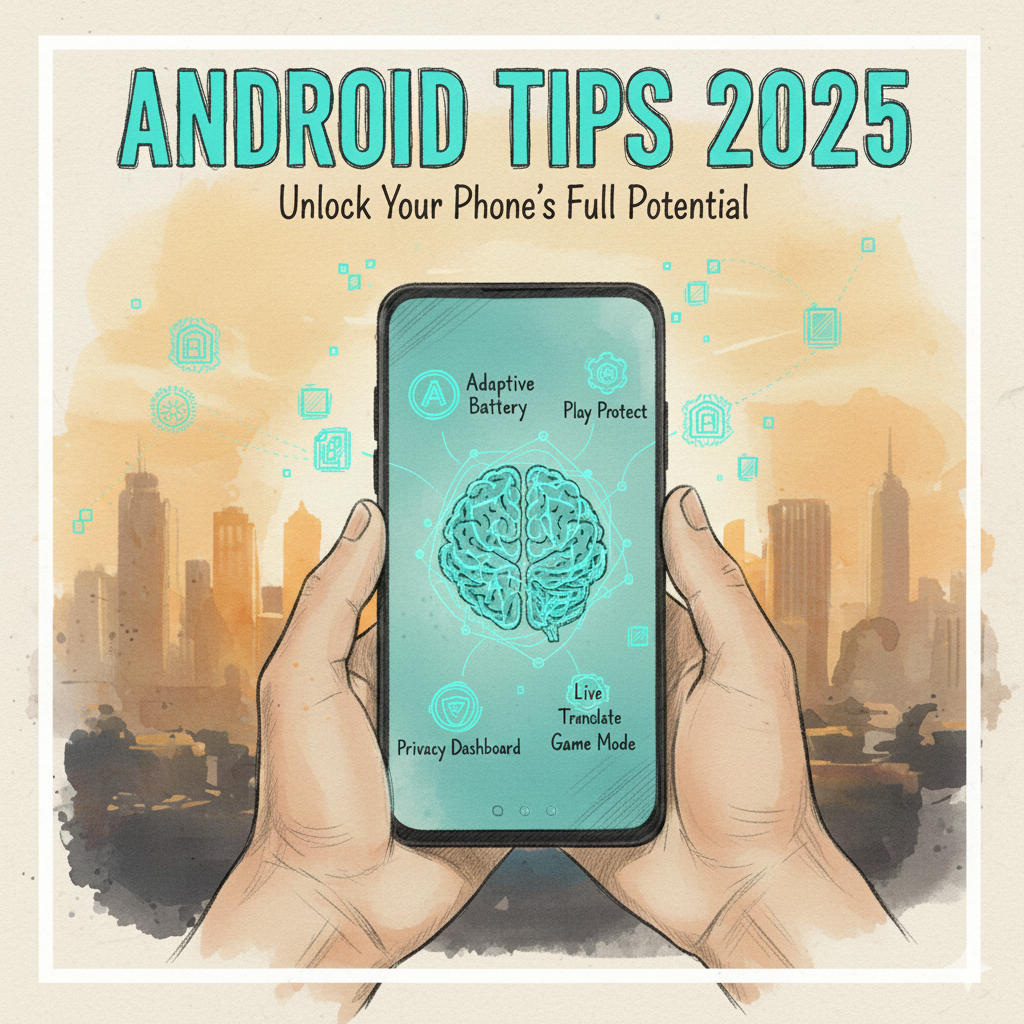
Most people think they need a new phone when their current one starts to feel slow, hot, or unreliable. In reality, the hardware is usually fine – it is the way the device is set up, the apps you keep, and the features you ignore that make the phone feel old. Android in 2025 is an incredibly mature, powerful platform. If you use the right tools inside it, your phone can feel fast, clean, and secure for years.
In this guide, you will find ten essential Android tips for 2025 that focus on real results: smoother performance, better battery life, stronger privacy, and a more enjoyable day-to-day experience. These are not gimmicks, and they do not require advanced technical skills. They are practical habits you can start today.
Table of Contents
- 1. Clean Up Storage The Smart Way, Not The Hard Way
- 2. Turn On Adaptive Battery For All-Day Power
- 3. Use Play Protect To Block Scam Apps Early
- 4. Audit Your Privacy Dashboard Every Week
- 5. Use Game Mode As A Performance Booster
- 6. Let Live Translate Help You In Real-Time
- 7. Turn On AI Scene Optimization For Better Photos
- 8. Use Clipboard Manager For Faster Work And Study
- 9. Switch To Quick Share For Quality File Transfers
- 10. Keep Android Updated – It Is Your Silent Protection
- Bonus Maintenance Habits For A Faster Phone
- Final Thoughts
1. Clean Up Storage The Smart Way, Not The Hard Way
The first thing many people do when their phone feels slow is delete random photos, videos, or apps. This helps a little, but it is not enough. Modern Android devices include storage tools that can safely remove old junk files, temporary data, and unused apps without you having to guess what is important.
How to use the built-in storage cleaner
- Open the Settings app.
- Tap Storage or Device care (name depends on your phone brand).
- Look for a button like Clean up, Smart Storage, or Optimize.
- Review the suggestions and confirm the clean-up.
Focus on removing large temporary files, old downloads, and apps you have not opened in months. This single step can free several gigabytes of space, reduce lag, and make app switching feel smoother.
2. Turn On Adaptive Battery For All-Day Power
Battery complaints are one of the most common Android issues. Yet most people never enable the feature that is designed to fix exactly that: Adaptive Battery. In 2025, this system is clever enough to learn when you use certain apps, when you usually charge, and which apps do not deserve to run all day in the background.
How to enable Adaptive Battery
- Go to Settings.
- Tap Battery or Battery & performance.
- Look for Adaptive Battery or Smart Battery.
- Turn it on and keep it on.
Give it a few days to learn your habits. You should see fewer overnight battery drops, less background drain, and more screen time before the next charge. It is one of the most effective Android tips for 2025 because it quietly works in the background with no extra effort from you.
3. Use Play Protect To Block Scam Apps Early
App-based scams are getting smarter. Some malicious apps look professional, have polished icons, and even fake positive reviews. Google’s Play Protect is built to watch for this problem. It scans apps from the Play Store and regularly checks installed apps for harmful behavior.
How to check Play Protect status
- Open the Google Play Store.
- Tap your profile icon in the top-right corner.
- Select Play Protect.
- Make sure scanning is turned on.
- Tap Scan if you want an immediate manual check.
If Play Protect warns you about an app, take it seriously and uninstall that app. It is not perfect, but it adds an extra layer of automatic protection. For more details, you can read the official documentation on the Google Play Protect help page.
4. Audit Your Privacy Dashboard Every Week
Privacy is not just a buzzword anymore – it is a daily concern. The Privacy Dashboard in Android shows which apps accessed sensitive permissions like camera, microphone, and location, and when they did it. This gives you a clear picture of how your data is being used.
How to use the Privacy Dashboard
- Open Settings.
- Tap Privacy.
- Select Privacy Dashboard.
- Check the list of apps that used your camera, mic, and location recently.
- Tap on any app and adjust or remove its permission if it feels unnecessary.
A quick weekly check is enough. You might be surprised how often some apps try to use your location or microphone in the background. Tightening these permissions is one of the easiest ways to protect your privacy without changing how you use your phone.
5. Use Game Mode As A Performance Booster
Many phones now have a Game Mode or Performance Mode. It is usually marketed to gamers, but it is actually useful for anyone who runs demanding apps. When activated, it reduces background processes, limits notifications, and focuses the phone’s resources on the app you are using.
How to take advantage of Game Mode
- Swipe down from the top to open the quick settings panel.
- Look for Game Mode, Performance Mode, or a similar tile.
- Turn it on before playing games or running heavy apps like video editors.
- Turn it off when you are done to return to normal power saving behavior.
This simple switch can reduce stutter, cut down loading times, and make your device feel much more responsive when it matters. It is an especially valuable tip for mid-range phones from a few years ago.
6. Let Live Translate Help You In Real-Time
One of the most impressive Android features in 2025 is Live Translate. It can translate text, voice, and sometimes even on-screen content in real time. If you live in a multicultural area, travel, or simply chat with people who speak other languages, this feature can be a daily lifesaver.
Where to find Live Translate
- Open Settings.
- Tap System or Languages & input (exact name may differ).
- Look for Live Translate or Live Caption & Translate.
- Turn it on and choose your preferred languages.
Once set up, you can use it inside messaging apps, voice calls, and supported media. It is a powerful, practical example of how Android AI can help you communicate more easily and confidently.
7. Turn On AI Scene Optimization For Better Photos
Smartphone cameras in 2025 are not just capturing light – they are analyzing the scene in front of you. AI scene optimization detects faces, food, text, landscapes, night scenes, and more. Then it adjusts color, contrast, and sharpness for a better-looking picture.
How to enable scene optimization
- Open your Camera app.
- Tap the Settings icon inside the camera view.
- Look for options like Scene optimizer, AI camera, or Smart HDR.
- Turn them on.
For best results, clean your camera lens with a soft cloth and allow the phone a second to focus before you tap the shutter. Combined with AI scene optimization, this can make even a mid-range device produce surprisingly sharp and vibrant photos.
8. Use Clipboard Manager For Faster Work And Study
If you copy and paste a lot – notes, links, quotes, messages – then the built-in Clipboard Manager is your quiet productivity partner. Instead of only remembering the last thing you copied, it can store multiple recent items for you to reuse.
How to use Clipboard Manager
- Copy some text as usual.
- Go to any text field (like a note, message, or browser).
- Tap and hold in the text field until the menu appears.
- Look for Clipboard and tap it.
You will see a list of things you copied recently. This makes it much easier to paste repeated information, collect bits of research, or move content between apps without going back and forth.
9. Switch To Quick Share For Quality File Transfers
Sending photos and videos through normal chat apps often compresses them, which is why they look blurry or low-quality. Features like Quick Share (or Nearby Share on some devices) let you send files directly between phones and other devices without destroying the quality and without using your mobile data.
How to use Quick Share or Nearby Share
- Open the photo, video, or file you want to send.
- Tap the Share button.
- Select Quick Share or Nearby Share.
- Choose the nearby device you want to send it to.
Make sure Bluetooth and location are turned on for both devices. Once you use this method a few times, it quickly becomes your favorite way to send large files without losing detail.
10. Keep Android Updated – It Is Your Silent Protection
System updates are not just about new icons or visual changes. They often contain critical security patches, bug fixes, performance improvements, and camera upgrades. Skipping updates leaves your phone vulnerable and can cause strange issues like random crashes or overheating.
How to check for Android updates
- Go to Settings.
- Scroll down and tap System or About phone.
- Select System update or Software update.
- Tap Check for updates and follow the instructions.
Ideally, install updates when your phone is connected to Wi-Fi and has enough battery or is plugged in to charge. Regular updates keep your device safer, faster, and more compatible with new apps.
Bonus: Simple Maintenance Habits That Keep Your Phone Fast
Beyond these ten essential Android tips for 2025, a few simple habits can keep your device feeling fresh:
- Restart once a week – this clears temporary glitches and resets background processes.
- Uninstall apps you do not use – if you have not opened an app in a month, remove it.
- Clean your home screen – too many widgets and live wallpapers can slow things down.
- Review notifications – turn off alerts from apps you do not care about to reduce distraction and battery drain.
None of these steps takes long on its own, but together they create a smoother, more relaxed experience. Your phone feels less cluttered, and you feel more in control.
Final Thoughts
A fast, reliable Android phone in 2025 is not about buying the newest flagship every year. It is about understanding the tools already built into your device and using them with intention. When you clean storage smartly, enable adaptive battery, protect yourself from scam apps, check your privacy dashboard, and keep your system updated, you unlock the real potential of your phone.
These Android tips for 2025 are designed for real everyday users, not just tech experts. Apply a few of them today and you will notice the difference within hours. Apply all of them and your phone will feel lighter, faster, and more trustworthy – almost like you just unboxed it again.
For more practical guides, step-by-step tutorials, and technology tips that keep you safe and confident online, visit Dokopress and explore our latest articles. Your next upgrade might not be a new phone – it might just be better knowledge.